
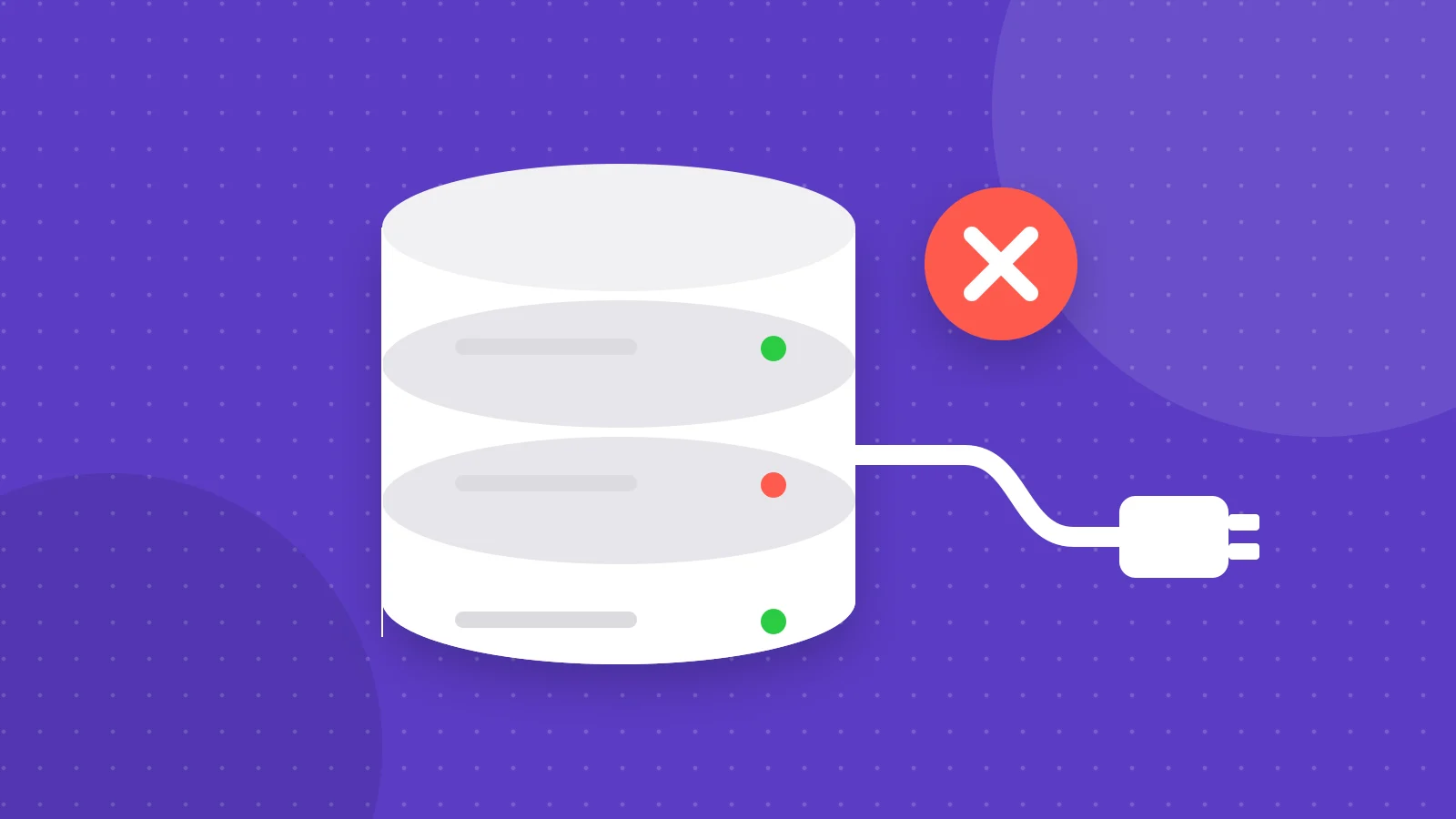
What the error means
WordPress keeps everything, from posts to settings, in a MySQL database, and it cannot show a page without it. This error means it tried to connect and failed. The cause is almost always one of four things: the login details in wp-config.php are wrong, the database server is down or overloaded, the database is damaged, or the WordPress files are corrupted.
Before you change anything, take a backup of your files and, if you can reach it, your database.
Check whether only the dashboard is affected
Visit yourdomain.com/wp-admin. If the front of the site shows the error but the dashboard says the database needs repairing, jump straight to the repair step below. If both show the same error, carry on.
Step 1: check the database details in wp-config.php
Open wp-config.php in your site’s root folder and compare four values with your hosting control panel: the database name, the database user, the password and the host. A recent migration, a password reset or a hosting change is the usual reason they stop matching.
- Most hosts use localhost for the host, but some use a specific server name, so check your host’s documentation.
- The database user must be assigned to the database with all privileges.
- If you changed the database password, change it here too.
define( 'DB_NAME', 'your_database_name' );
define( 'DB_USER', 'your_database_user' );
define( 'DB_PASSWORD', 'your_database_password' );
define( 'DB_HOST', 'localhost' );
Step 2: check the database server is running
Log in to your hosting panel and open phpMyAdmin. If you can see your tables, the server is up and the details are the problem. If it will not load, the database server is down or your account has hit a resource limit, so contact your host. A sudden traffic spike or a runaway plugin is a common trigger.
Step 3: repair a damaged database
If the dashboard mentions repair, or the server is fine but tables are damaged, WordPress has a built-in repair tool. Add this line to wp-config.php, then visit yourdomain.com/wp-admin/maint/repair.php and choose to repair. Remove the line afterwards, because that page needs no login while the setting is on.
define( 'WP_ALLOW_REPAIR', true );wp db check
wp db repairStep 4: replace corrupted WordPress files
If the details and database are fine, a failed update may have damaged core files. Check them against the official copies and replace WordPress core without touching your content.
wp core verify-checksums
wp core download --force --skip-contentCommon questions
Why does WordPress say error establishing a database connection?
WordPress could not connect to its database. The usual reasons are wrong details in wp-config.php, a database server that is down or over its limits, a damaged database, or corrupted WordPress files.
Will I lose my content if I get this error?
Almost never. Your posts and pages live in the database, which is normally intact. The error is about reaching it, and fixing the connection brings everything back.
How do I find my database name and password?
They are in your wp-config.php file, and your hosting control panel shows the same details under databases. If you have forgotten the password, you can set a new one in the panel and update wp-config.php to match.
Is it safe to leave WP_ALLOW_REPAIR on?
No. The repair page works without logging in while the setting is on, so remove the line as soon as you finish.
Have a project in mind? I reply within a day or two.